
Alarm
1. Overview
The Alarm component is a comprehensive alarm management and monitoring widget designed for the Stream platform dashboard. It provides real-time and historical alarm display with advanced filtering, API integration, and customizable styling. The component is perfect for monitoring system alarms, tracking alarm history, and managing alarm states in industrial and process control applications.
This component is particularly effective for:
- Real-Time Monitoring: Display current active alarms and their status
- Historical Analysis: Review past alarms and trends for analysis
- Alarm Management: Acknowledge, filter, and manage alarm states
- Priority Filtering: Filter alarms by priority levels and importance
- Tag-Based Filtering: Filter alarms by specific tag names or patterns
- API Integration: Connect to external alarm systems and databases
Key Features
- Real-Time Alarms: Live alarm monitoring with automatic updates
- Historical Alarms: Historical alarm data with date range filtering
- Advanced Filtering: Priority, tag name, and custom filtering options
- API Integration: Connect to external alarm systems and databases
- Customizable Display: Flexible grid layout with configurable columns
- Priority Management: Color-coded priority levels and filtering
- Responsive Design: Adapts to different screen sizes
2. Configuration Steps
2.1 Panel Configuration
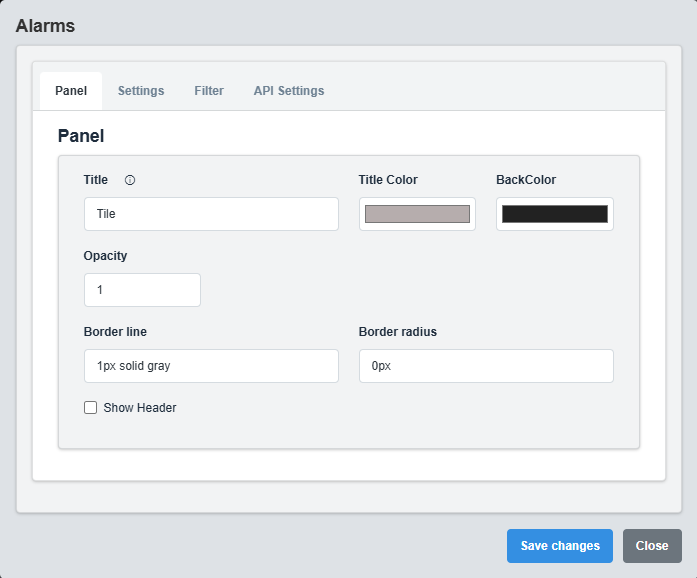
Panel Configuration tab showing basic appearance and layout settings for the alarm component.
The Panel tab controls the basic appearance and layout of the alarm component.
|
Parameter |
Description |
Format/Options |
Example |
|
Show Header |
Display the panel header with title |
true/false |
false |
|
Title |
Sets the display title for the alarm component |
Text string |
Tile |
|
Title Color |
Sets the color of the title text |
Hex color code or CSS color name |
#b6adad |
|
Back Color |
Sets the background color for the alarm container |
Hex color code or CSS color name |
#222222 |
|
Opacity |
Controls the transparency level of the alarm container |
0.0 (transparent) to 1.0 (opaque) |
1.0 |
|
Border Line |
Defines the border style for the alarm container. Supports both full border and side-specific border styling |
CSS border syntax or side-specific syntax (semicolon-separated) |
1px solid gray |
|
Border Radius |
Sets the corner rounding for the alarm container |
CSS border-radius value |
0px |
Container Styling: The panel settings control the container that holds the alarm grid, providing the overall appearance and layout structure.
2.2 Settings Configuration
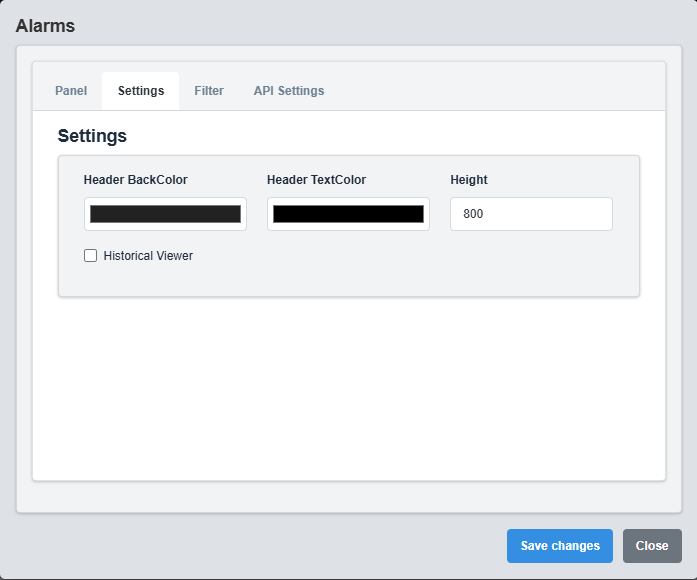
Settings Configuration tab showing display options, grid settings, and alarm management options.
The Settings tab controls the display options, grid settings, and alarm management configuration.
|
Parameter |
Description |
Format/Options |
Example |
|
Header Back Color |
Background color for the alarm grid header |
Hex color code or CSS color name |
#222222 |
|
Header Text Color |
Text color for the alarm grid header |
Hex color code or CSS color name |
MyWhite |
|
Height |
Height of the alarm grid display |
Numeric value (pixels) |
800 |
|
Is Historical |
Display historical alarms instead of real-time |
true/false |
false |
|
No Of Days |
Number of days for historical alarm data |
Numeric value |
30 |
Display Modes: Choose between real-time alarms (current active alarms) or historical alarms (past alarm data) based on your monitoring needs.
2.3 Filters Configuration
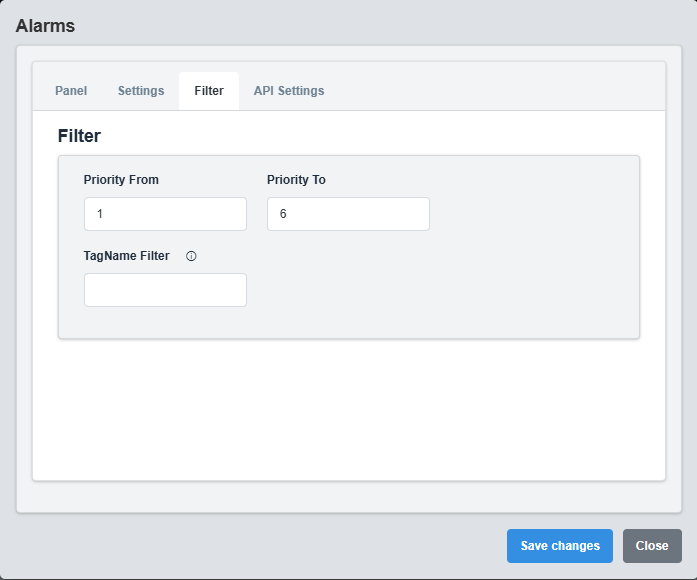
Filters Configuration tab showing alarm filtering options and criteria settings.
The Filters tab controls the alarm filtering options and criteria for displaying specific alarms.
|
Parameter |
Description |
Format/Options |
Example |
|
Priority From |
Minimum priority level to display |
Numeric value (1-6) |
1 |
|
Priority To |
Maximum priority level to display |
Numeric value (1-6) |
6 |
|
Tag Name |
Filter alarms by tag name pattern |
Text string with wildcards (*) |
* |
Filter Configuration Example
Priority Range: 1-6 (All priority levels) Tag Filter: "TANK.*" (All tank-related alarms)
Filtering Options: Use filters to display only relevant alarms based on priority and tag names
2.4 API Settings Configuration

API Settings Configuration tab showing API integration options and endpoint configuration.
The API Settings tab controls the API integration and endpoint configuration for alarm data.
|
Parameter |
Description |
Format/Options |
Example |
|
End Point |
API endpoint URL for alarm data |
Valid URL string |
http://localhost:49110/api/Alarms/Current?TagFilter=Valve* |
API Integration: Configure API endpoints to connect to external alarm systems and databases for real-time and historical alarm data.
3. Troubleshooting
Common Issues and Solutions
|
Issue |
Possible Causes |
Solutions |
|
No alarms displaying |
API endpoint not responding, filters too restrictive |
Check API endpoint and adjust filter settings |
|
Alarms not updating |
Auto refresh disabled, API connection issues |
Enable auto refresh and check API connectivity |
|
Filter not working |
Invalid filter syntax, incorrect tag patterns |
Check filter syntax and tag name patterns |
|
API connection failed |
Invalid endpoint URL, authentication issues |
Verify endpoint URL and API credentials |
|
Historical data not loading |
Date range issues, historical endpoint not configured |
Check date range and historical endpoint configuration |