
Text
1. Overview
The Text component is a versatile text display and editing widget designed for the Stream platform dashboard. It provides a rich text editor interface for creating, editing, and displaying formatted text content with customizable styling and layout options. The component is perfect for displaying information, instructions, documentation, and formatted content within the dashboard.
This component is particularly effective for:
- Information Display: Show important information and instructions
- Documentation: Display help text and documentation content
- Rich Text Content: Create formatted text with styling and formatting
- User Instructions: Provide step-by-step instructions and guides
- Content Management: Edit and manage text content dynamically
- Dashboard Labels: Add labels, titles, and descriptive text
Key Features
- Rich Text Editor: Full-featured text editing with formatting options
- Customizable Styling: Full control over fonts, colors, and appearance
- Content Management: Easy text content creation and editing
- Responsive Design: Adapts to different screen sizes
- Formatting Options: Bold, italic, underline, and other text formatting
- Easy Configuration: Simple setup and content management
- Professional Appearance: Clean, modern text display
2. Configuration Steps
2.1 Panel Configuration
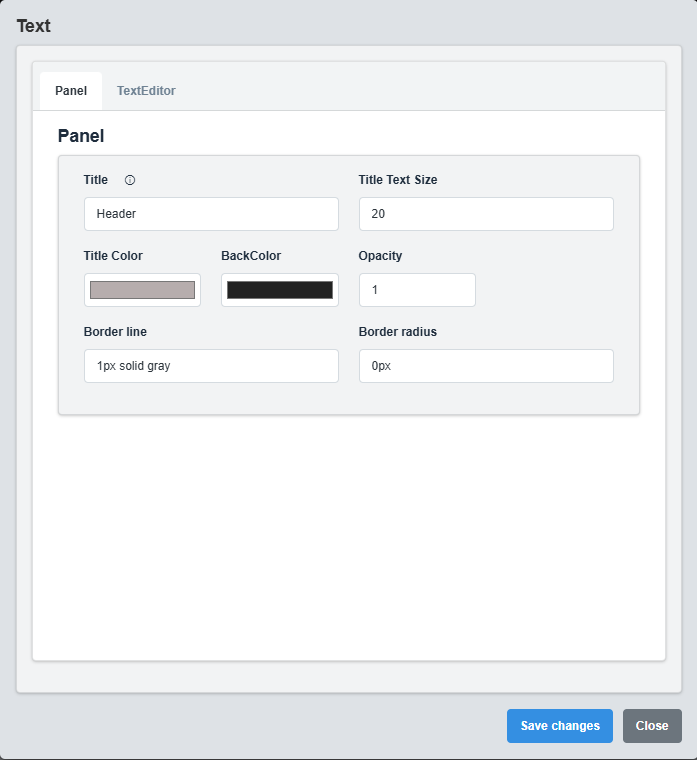
Panel Configuration tab showing basic appearance and layout settings for the text component.
The Panel tab controls the basic appearance and layout of the text component.
|
Parameter |
Description |
Format/Options |
Example |
|
Title |
Sets the display title for the text component |
Text string |
Header |
|
Text Size |
Font size for the text content |
CSS font-size value |
20 |
|
Title Color |
Sets the color of the title text |
Hex color code or CSS color name |
#b6adad |
|
Back Color |
Sets the background color for the text container |
Hex color code or CSS color name |
#222222 |
|
Opacity |
Controls the transparency level of the text container |
0.0 (transparent) to 1.0 (opaque) |
1.0 |
|
Border Line |
Defines the border style for the container. Supports both full border and side-specific border styling |
CSS border syntax or side-specific syntax (semicolon-separated) |
1px solid gray or left: 2px solid red; top: 1px solid blue |
|
Border Radius |
Sets the corner rounding for the text container |
CSS border-radius value |
0px |
Container Styling: The panel settings control the container that holds the text content, providing the overall appearance and layout structure.
2.2 Text Editor Configuration

Text Editor Configuration tab showing rich text editing options and content management.
The Text Editor tab controls the rich text content and formatting options for the text component.
|
Parameter |
Description |
Format/Options |
Example |
|
Content |
Main text content for the component |
HTML or plain text |
Welcome to the dashboard |
|
Text Alignment |
Alignment of the text content |
left, center, right, justify |
left |
|
Font Family |
Font family for the text content |
CSS font-family value |
Arial, sans-serif |
|
Font Weight |
Weight of the text font |
normal, bold, 100-900 |
normal |
|
Line Height |
Height between text lines |
CSS line-height value |
1.5 |
|
Text Color |
Color of the text content |
Hex color code or CSS color name |
#ffffff |
|
Rich Text Mode |
Enable rich text formatting |
true/false |
true |
Rich Text Formatting Options
Bold Text: Bold content Italic Text: Italic content Underlined Text: Underlined content Links: Link text Lists:
- List item
Content Management: Use the rich text editor to create formatted content with various styling options, including bold, italic, links, and lists.
3. Troubleshooting
Common Issues and Solutions
|
Issue |
Possible Causes |
Solutions |
|
Text not displaying |
No content configured, invalid HTML |
Add content and check HTML validity |
|
Formatting not working |
Rich Text Mode disabled, invalid HTML tags |
Enable Rich Text Mode and check HTML syntax |
|
Text not aligned |
Incorrect alignment settings, CSS conflicts |
Check alignment settings and CSS compatibility |
|
Text not visible |
Text color same as background, opacity issues |
Adjust text color and check opacity settings |
|
Content not updating |
Content not saved |
Save content and refresh the editor |