
Button
1. Overview
The Button component is an interactive control element designed for the Stream platform dashboard. It provides a user-friendly interface for triggering actions, commands, and operations within the system. The component supports multiple button configurations and can execute various commands based on user interaction.
This component is particularly effective for:
- Control Operations: Starting, stopping, or controlling processes
- Data Manipulation: Triggering data updates or calculations
- Navigation: Moving between different views or pages
- System Commands: Executing system-level operations
- User Feedback: Providing visual feedback for user actions
- Process Control: Managing industrial processes and equipment
Key Features
- Multiple Commands: Support for multiple button commands
- Visual Feedback: Color changes based on button state
- Access Control: Configurable access levels for security
- Runtime Editing: Optional runtime configuration changes
- Command Feedback: Optional command execution feedback
- Customizable Appearance: Full control over styling and layout
- Real-Time Updates: Live status updates from PLC/SCADA systems
- Responsive Design: Adapts to different screen sizes
2. Configuration Steps
2.1 Panel Configuration
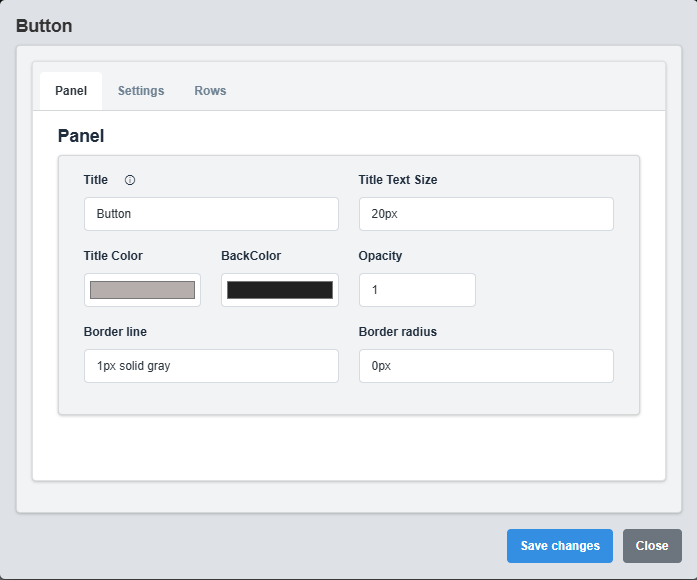
Panel Configuration tab showing basic appearance and layout settings for the button component.
The Panel tab controls the basic appearance and layout of the button component.
|
Parameter |
Description |
Format/Options |
Example |
|
Title |
Sets the display text for the button |
Text string |
Button |
|
Title Color |
Sets the color of the button text |
Hex color code or CSS color name |
#b6adad |
|
Back Color |
Sets the background color for the button |
Hex color code or CSS color name |
#222222 |
|
Opacity |
Controls the transparency level of the button |
0.0 (transparent) to 1.0 (opaque) |
1.0 |
|
Text Size |
Font size for the button text |
CSS font-size value |
20px |
|
Border Line |
Defines the border style for the container. Supports both full border and side-specific border styling |
CSS border syntax or side-specific syntax (semicolon-separated) |
1px solid gray or left: 2px solid red; top: 1px solid blue |
|
Border Radius |
Sets the corner rounding for the button |
CSS border-radius value |
0px |
Button Styling: Configure the visual appearance of the button to match your dashboard theme and provide clear visual feedback for user interactions.
2.2 Settings Configuration

Settings Configuration tab showing command settings and access control options.
The Settings tab controls the command execution, feedback, and access control for the button.
|
Parameter |
Description |
Format/Options |
Example |
|
Allow Runtime Edit |
Allow configuration changes at runtime |
true/false |
false |
|
False Color |
Color when button is in false/inactive state |
Hex color code |
#ff0000 |
|
True Color |
Color when button is in true/active state |
Hex color code |
#00ff00 |
|
Min Access Level |
Minimum access level required to use button |
Numeric value (0-100) |
0 |
Access Control: Use the Min Access Level parameter to restrict button access based on user permissions, ensuring proper security for critical operations.
2.3 Rows Configuration

Rows Configuration tab showing button layout and arrangement settings.
The Rows tab controls the layout and arrangement of multiple buttons.
Command Configuration
|
Parameter |
Description |
Format/Options |
Example |
|
Tag Name |
Data source tag for command execution |
Tag name string |
SIM.Command1 |
|
Value |
Value to write when button is pressed |
Numeric or text value |
1, "START", 100 |
Button Layout: Configure the arrangement of multiple buttons to create organized control panels and user interfaces.
3. Troubleshooting
Common Issues and Solutions
|
Issue |
Possible Causes |
Solutions |
|
Button not responding |
Incorrect tag name, access level too high |
Verify tag name and check access level settings |
|
Command not executing |
Invalid tag name, data source not available |
Check tag name and verify data source connection |
|
Colors not changing |
False/True colors not configured |
Configure False Color and True Color parameters |
|
Access denied |
User access level below minimum required |
Adjust Min Access Level or user permissions |
|
Button not visible |
Opacity set to 0, incorrect positioning |
Check opacity and positioning settings |