
Dropdown
Dropdown Control
In order to add a Dropdown control to the graphics page, follow the following steps:
1. Select "Dropdown" component from the tool bar.
2. To configure the "Dropdown", Double-click to open its configuration window.
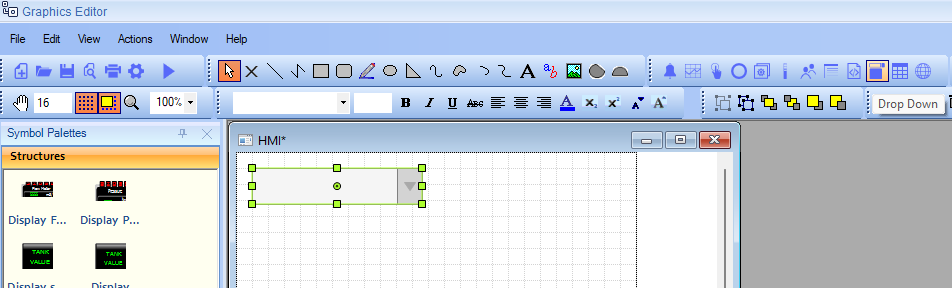
Dropdown Configuration
General Tab
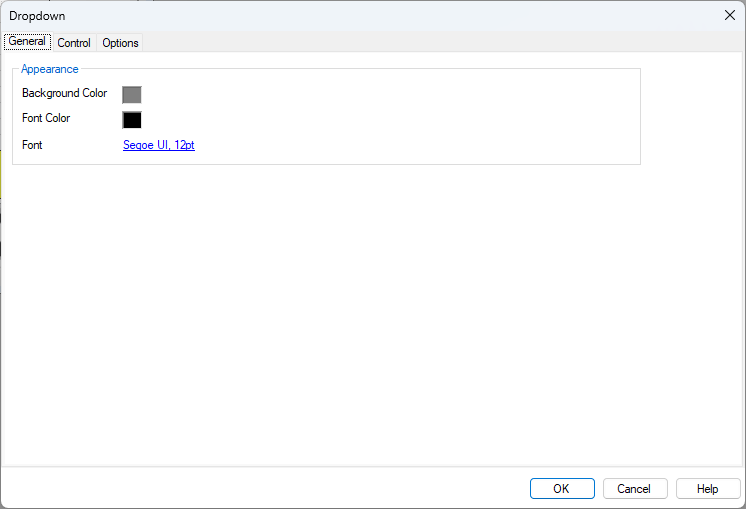
Apperance
- Font: Set the font style and size for the dropdown text (default: Segoe UI, 12pt).
- Fore Color: Set the text color.
- Back Color: Set the background color of the dropdown.
Control Tab
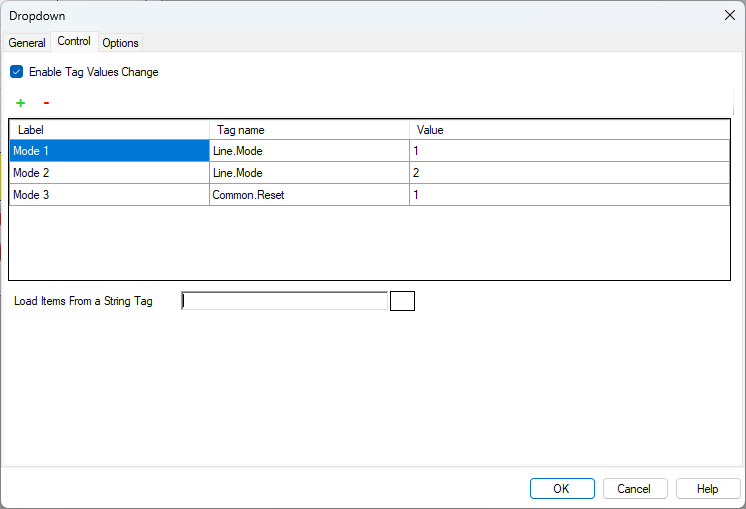
- Enable Tag Change: When enabled, selecting an item from the dropdown will write a value to a specified tag. Use this mode for user-driven parameter changes, mode selection, or setpoint configuration.
Dynamic Contents (Runtime)
- Load Items From a String Tag: Enter a tag name (string type) that contains JSON-formatted dropdown contents. The dropdown will automatically monitor this tag and update its items whenever the tag value changes at runtime.
This feature enables dynamic, data-driven dropdowns that respond to changing system conditions without requiring graphics page modifications.
This is the JSON format:
{
"Label 1": ["TagName1", "ValueToWrite1"],
"Label 2": ["TagName2", "ValueToWrite2"],
"Label 3": ["TagName3", "ValueToWrite3"]
}
You can use Dynamic Parameters as well:
{
"Start {LineNo}": ["{LineNo}.Command", "1"],
"Stop {LineNo}": ["{LineNo}.Command", "0"],
"Set {LineNo} to {DefaultSpeed}": ["{LineNo}.Speed", "{DefaultSpeed}"]
}
Use Cases:
1. Equipment Availability
Update dropdown options based on which equipment is currently online or available:
{
"Pump A (Online)": ["ActivePump", "1"],
"Pump B (Online)": ["ActivePump", "2"]
}
When Pump C comes online, script updates the string tag to add:
{
"Pump A (Online)": ["ActivePump", "1"],
"Pump B (Online)": ["ActivePump", "2"],
"Pump C (Online)": ["ActivePump", "3"]
}
2. Production Recipes
Load product recipes from a database or file system:
{
"Recipe: High Yield": ["Production.Recipe", "HY-001"],
"Recipe: Standard Mix": ["Production.Recipe", "STD-002"],
"Recipe: Economy Blend": ["Production.Recipe", "ECO-003"]
}
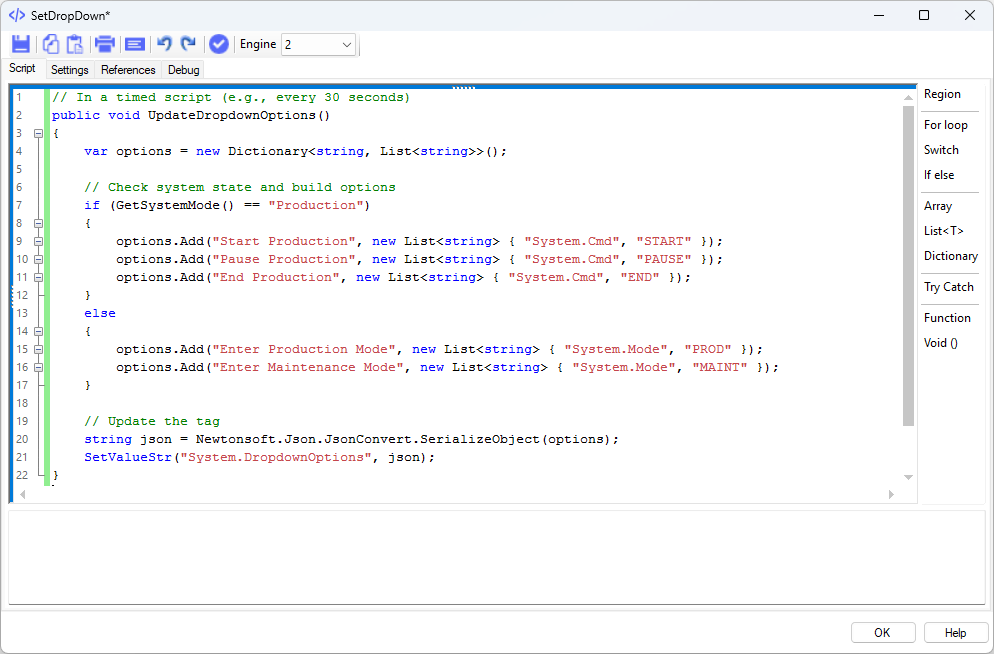
Updating the Tag Value (Script Examples):
Example 1: Load from Text File
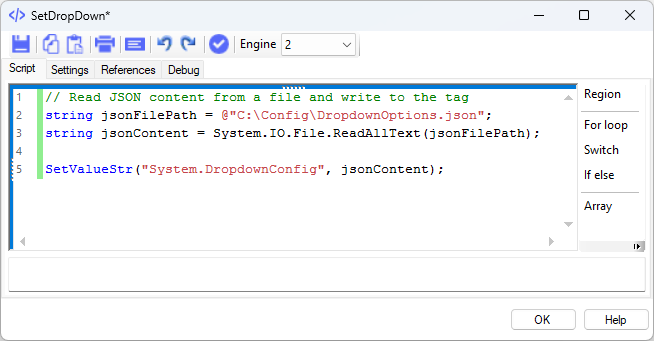
Example 2: Build JSON Dynamically Based on System State
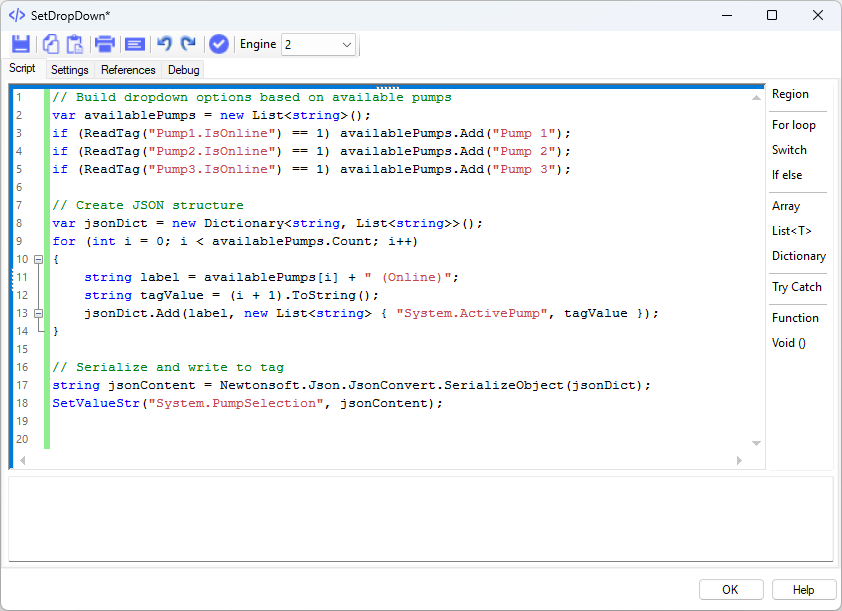
Example 3: Periodic Update with Timer
Options Tab
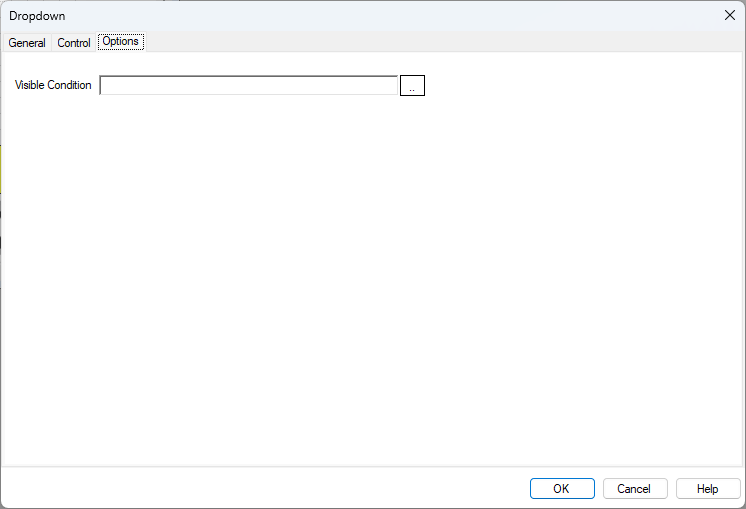
Visibility
- Visible Condition: Enter a tag expression to control dropdown visibility. When the expression evaluates to 1, the dropdown is visible; when 0, it is hidden. Leave empty for always visible.