
Form
1. Overview
The Form component is a powerful data input widget designed for the Stream platform dashboard. It provides a comprehensive form builder with multiple field types, validation, and API integration capabilities. The component supports both modal and inline display modes, making it perfect for data collection, user input, and system configuration.
This component is particularly effective for:
- Data Collection: Gathering user input and system data
- Configuration Forms: System setup and parameter configuration
- User Registration: User account creation and management
- Data Entry: Manual data input and updates
- API Integration: Form submission to external services
- Validation: Input validation and error handling
Key Features
- Multiple Field Types: Text, number, select, checkbox, and more
- Form Validation: Required field validation and error handling
- API Integration: Submit form data to external APIs
- Modal Display: Popup form display for better user experience
- Dynamic Fields: Configurable field options and selections
- Customizable Styling: Full control over appearance and layout
- Row-based Layout: Organize fields in rows for better structure
- Real-time Validation: Instant feedback on form input
2. Configuration Steps
2.1 Panel Configuration
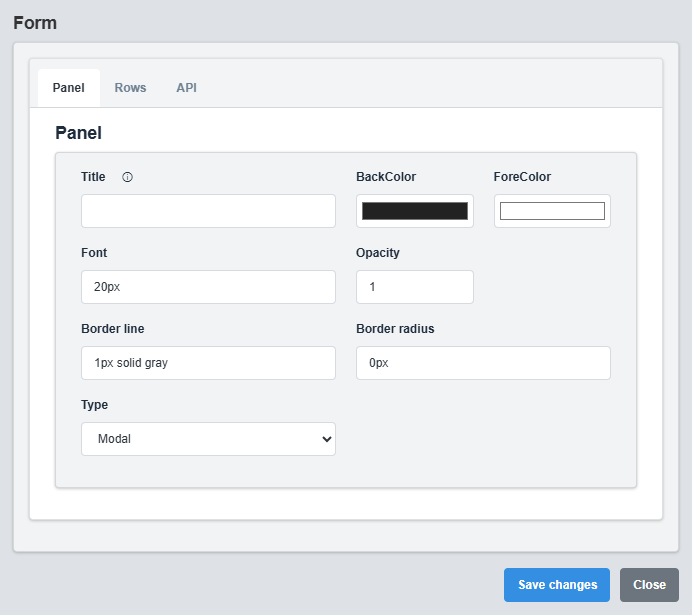
Panel Configuration tab showing basic appearance and display settings for the form component.
The Panel tab controls the basic appearance and display mode of the form component.
|
Parameter |
Description |
Format/Options |
Example |
|
Title |
Sets the display title for the form |
Text string |
User Registration |
|
Back Color |
Sets the background color for the form |
Hex color code or CSS color name |
#222222 |
|
Fore Color |
Sets the text color for the form |
Hex color code or CSS color name |
#ffffff |
|
Font |
Font size for the form text |
CSS font-size value |
20px |
|
Opacity |
Controls the transparency level of the form |
0.0 (transparent) to 1.0 (opaque) |
1.0 |
|
Border Line |
Defines the border style for the container. Supports both full border and side-specific border styling |
CSS border syntax or side-specific syntax (semicolon-separated) |
1px solid gray or left: 2px solid red; top: 1px solid blue |
|
Border Radius |
Sets the corner rounding for the form |
CSS border-radius value |
0px |
|
Type |
Display mode for the form |
Modal, Inline |
Modal |
Display Modes: Modal forms appear as popup dialogs, while inline forms are embedded directly in the dashboard layout.
2.2 Rows Configuration
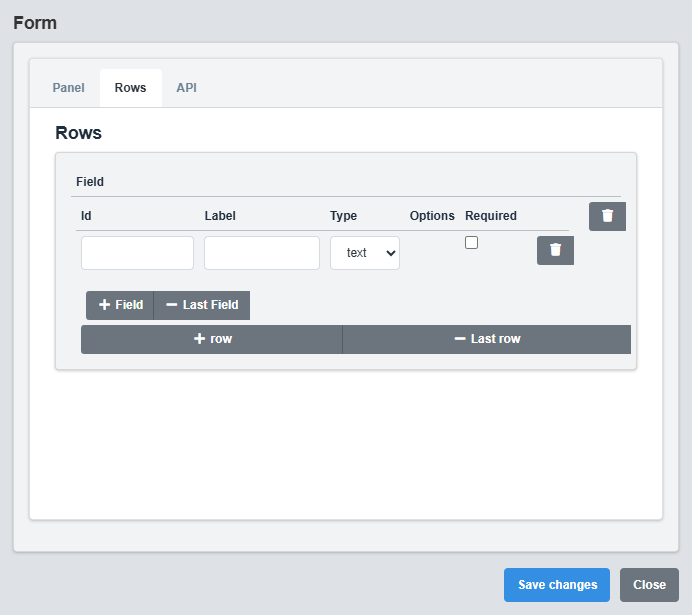
Rows Configuration tab showing form layout and field organization settings.
Field Configuration
|
Parameter |
Description |
Format/Options |
Example |
|
ID |
Unique identifier for the field |
Text string |
username, email, phone |
|
Label |
Display label for the field |
Text string |
Username, Email Address |
|
Type |
Type of input field |
text, number, select, checkbox, etc. |
text |
|
Required |
Whether the field is required |
true/false |
true |
|
Select Options |
Options for select fields |
Semicolon-separated list |
Option1;Option2;Option3 |
Field Organization: Organize fields in rows to create logical groupings and improve form usability.
2.3 API Configuration
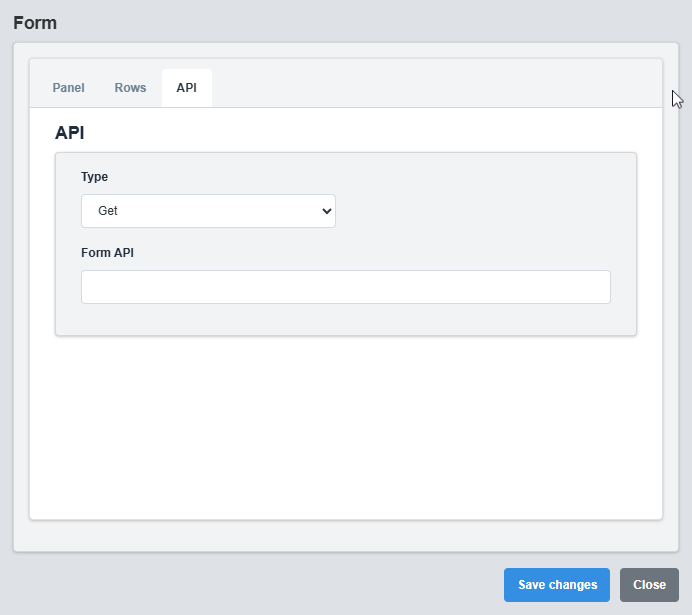
API Configuration tab showing settings for form submission and external service integration.
The API tab controls form submission and integration with external services.
|
Parameter |
Description |
Format/Options |
Example |
|
Type |
Type of API request |
GET, POST |
POST |
|
API URL |
Endpoint URL for form submission |
Valid URL string |
https://api.example.com/submit |
|
Request Body |
Template for request body |
JSON or form data template |
{"username": "{username}", "email": "{email}"} |
API Integration: Configure the API settings to submit form data to external services or internal endpoints for processing.
3. Troubleshooting
Common Issues and Solutions
|
Issue |
Possible Causes |
Solutions |
|
Form not displaying |
Incorrect panel configuration, missing fields |
Check panel settings and ensure fields are configured |
|
Validation not working |
Required fields not properly configured |
Verify required field settings and validation rules |
|
API submission failing |
Incorrect API URL, invalid request format |
Check API URL and request body template |
|
Select options not showing |
Select options not properly formatted |
Verify semicolon-separated option format |
|
Modal not opening |
Type set to Inline instead of Modal |
Change Type parameter to Modal |