
Magic Box
1. Overview
The Magic Box component is a powerful and flexible widget designed for the Stream platform dashboard. It allows developers to create custom HTML, CSS, and JavaScript content within a secure, sandboxed environment. This component is perfect for creating custom visualizations, interactive elements, and complex user interfaces that go beyond the standard dashboard components.
This component is particularly effective for:
- Custom Visualizations: Create unique charts, graphs, and data displays
- Interactive Elements: Build custom buttons, forms, and user interfaces
- Data Integration: Connect to external APIs and display real-time data
- Custom Styling: Apply advanced CSS animations and responsive design
- Dynamic Content: Create content that changes based on tag values and user interactions
Key Features
- HTML/CSS/JavaScript Support: Full web development capabilities
- Security Sandbox: Safe execution environment with sanitization
- Stream Integration: Built-in functions for tag operations and navigation
- Dynamic Tag Support: Real-time data binding with @{tagName} syntax
- Scoped Execution: Isolated JavaScript execution per component
- Resource Management: Automatic cleanup of intervals, timeouts, and event listeners
- Keyframe Support: Advanced CSS animations with proper scoping
2. Configuration Steps
2.1 Panel Configuration
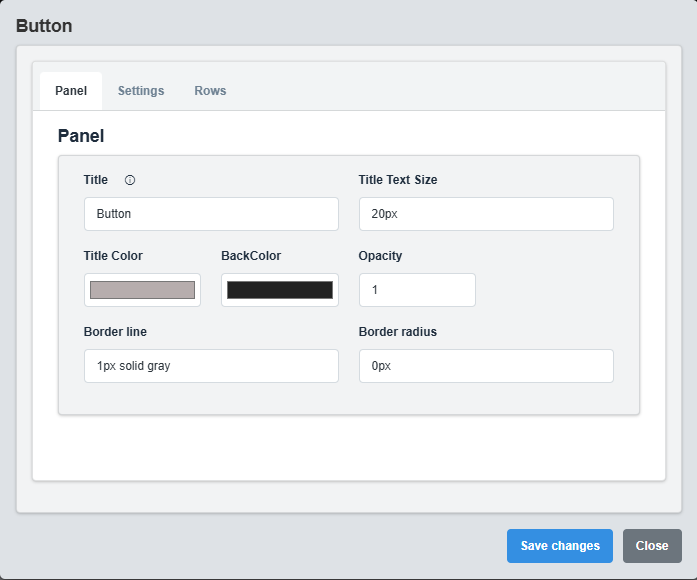
Panel Configuration tab showing basic appearance and layout settings for the Magic Box component.
The Panel tab controls the basic appearance and layout of the Magic Box component.
|
Parameter |
Description |
Format/Options |
Example |
|
Title |
Title text displayed on the component |
Text string |
MagicBox |
|
Title Color |
Color of the title text |
Hex color code or CSS color name |
#b6adad |
|
Back Color |
Background color for the component container |
Hex color code or CSS color name |
#222222 |
|
Opacity |
Transparency level of the component |
0.0 (transparent) to 1.0 (opaque) |
1.0 |
|
Border |
Border style for the component container |
CSS border syntax |
1px solid gray |
|
Border Radius |
Corner rounding for the component container |
CSS border-radius value |
0px |
Panel Styling: The panel settings control the container appearance. The actual content styling is controlled through the CSS configuration section.
2.2 HTML Configuration
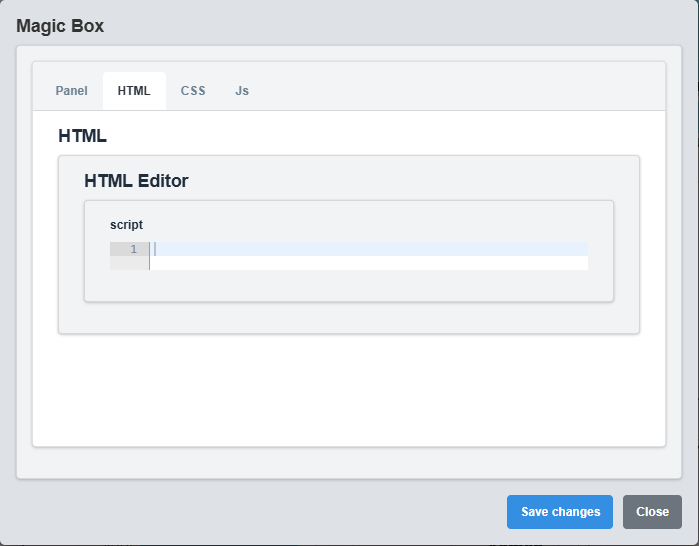
HTML Configuration tab showing HTML content editor with syntax highlighting.
The HTML tab allows you to define the structure and content of your Magic Box component.
|
Parameter |
Description |
Format/Options |
Example |
|
HTML Script |
HTML content for the component |
Valid HTML markup |
<div class="custom-widget">Hello World</div> |
Dynamic Tag Support: Use @{tagName} syntax to insert real-time tag values. The component will automatically replace these with live data from your PLC/SCADA system.
<div class="status-indicator"> <h3>System Status: @{System.Status}</h3> <p>Temperature: @{Temperature.Value}°C</p> <p>Pressure: @{Pressure.Value} bar</p> </div>
2.3 CSS Configuration
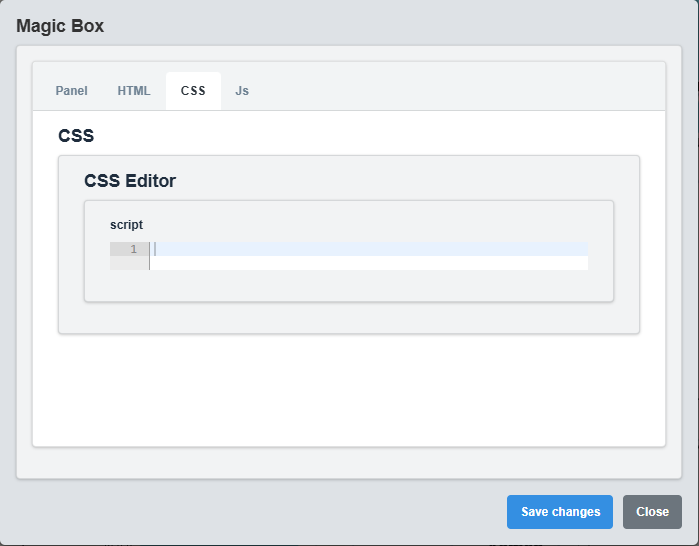
CSS Configuration tab showing CSS styling editor with syntax highlighting.
The CSS tab allows you to style your Magic Box component with custom CSS.
|
Parameter |
Description |
Format/Options |
Example |
|
CSS Script |
CSS styles for the component |
Valid CSS syntax |
.custom-widget { background: #f0f0f0; } |
Keyframe Support: The component supports CSS keyframes for animations. Keyframes are automatically scoped to prevent conflicts with other components.
.custom-widget { background: linear-gradient(45deg, #ff6b6b, #4ecdc4); border-radius: 10px; padding: 20px; animation: pulse 2s infinite; } @keyframes pulse { 0% { transform: scale(1); } 50% { transform: scale(1.05); } 100% { transform: scale(1); } }
2.4 JavaScript Configuration
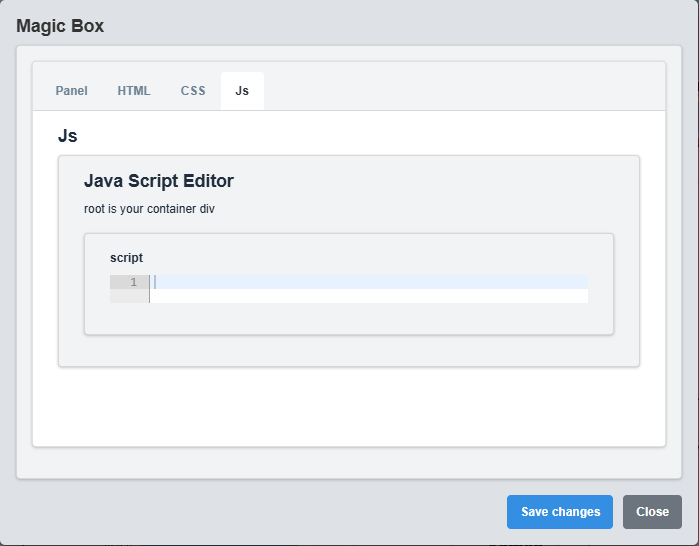
JavaScript Configuration tab showing JavaScript editor with syntax highlighting.
The JavaScript tab allows you to add interactive functionality to your Magic Box component.
|
Parameter |
Description |
Format/Options |
Example |
|
JS Script |
JavaScript code for the component |
Valid JavaScript syntax |
console.log('Magic Box loaded'); |
Stream Functions: The component provides access to Stream built-in functions through the Stream object. These functions allow you to interact with tags, navigate between pages, and perform UI operations.
// Example: Update display based on tag value const temperature = Stream.Tag.GetValueNum('Temperature.Value'); if (temperature > 80) { $('.status-indicator').addClass('warning'); Stream.UI.ShowNotification('High temperature detected!', 'warning'); }
3. Stream Built-in Functions
The Magic Box component provides access to a comprehensive set of Stream built-in functions through the Stream object. These functions are organized into logical categories:
Tag Operations
Read and write tag values, check tag existence, and manage data connections.
Navigation
Navigate between dashboards, refresh pages, and open external URLs.
UI Functions
Show notifications, confirmations, prompts, and other user interface elements.
Utilities
Format numbers, dates, perform math operations, and manage timing functions.
System Info
Get current user, page name, and component container information.
📚 View Complete Stream Functions Documentation
4. Security Features
⚠️ Security Notice: The Magic Box component includes comprehensive security features to protect your dashboard from malicious code. All user input is sanitized and executed in a controlled environment.
Code Sanitization
The component automatically sanitizes all HTML, CSS, and JavaScript code to prevent:
- Script Injection: Removes dangerous script tags and event handlers
- XSS Attacks: Sanitizes HTML attributes and content
- Code Injection: Blocks dangerous JavaScript functions and patterns
- Resource Access: Prevents unauthorized access to system resources
Execution Sandbox
JavaScript code runs in a sandboxed environment with:
- Scoped DOM Access: Limited to the component container
- Resource Tracking: Automatic cleanup of intervals and timeouts
- Access Controls: Restricted access to dangerous global objects
- Error Handling: Graceful error handling and logging
5. Troubleshooting
Common Issues and Solutions
|
Issue |
Possible Causes |
Solutions |
|
Dynamic tags not updating |
Invalid tag names, tag not found, syntax error |
Check tag name spelling, ensure tag exists in system, verify @{tagName} syntax |
|
JavaScript not executing |
Syntax errors, security restrictions, scoping issues |
Check browser console for errors, verify JavaScript syntax, use Stream functions |
|
CSS not applying |
Invalid CSS syntax, scoping conflicts, keyframe issues |
Validate CSS syntax, check for conflicts, ensure proper keyframe naming |
|
HTML not displaying |
Invalid HTML syntax, sanitization blocking content |
Check HTML syntax, avoid dangerous tags and attributes |
|
Stream functions not working |
Function not available, incorrect syntax, context issues |
Check function availability, verify syntax, ensure proper context |
|
Performance issues |
Infinite loops, memory leaks, excessive DOM manipulation |
Use proper cleanup, avoid infinite loops, optimize DOM operations |