
Map
1. Overview
The Google Maps component is a powerful mapping widget designed for the Stream platform dashboard. It provides interactive map functionality with marker support, info windows, and location-based data visualization. The component integrates with Google Maps API to display geographical data, track locations, and provide spatial context for your dashboard information.
This component is particularly effective for:
- Location Tracking: Display and track device or asset locations
- Site Management: Manage multiple sites or locations
- Geographic Data: Visualize data with geographical context
- Asset Monitoring: Monitor distributed assets and equipment
- Real-Time Updates: Live location updates from PLC/SCADA systems
Key Features
- Interactive Maps: Full Google Maps integration with zoom and pan
- Custom Markers: Multiple marker types with custom icons and colors
- Info Windows: Rich information popups for markers and locations
- Site Management: Manage multiple sites with individual configurations
- API Integration: Connect to external APIs for location data
- Real-Time Updates: Live location updates from data sources
- Map Styling: Custom map appearance and themes
2. Configuration Steps
2.1 Panel Configuration
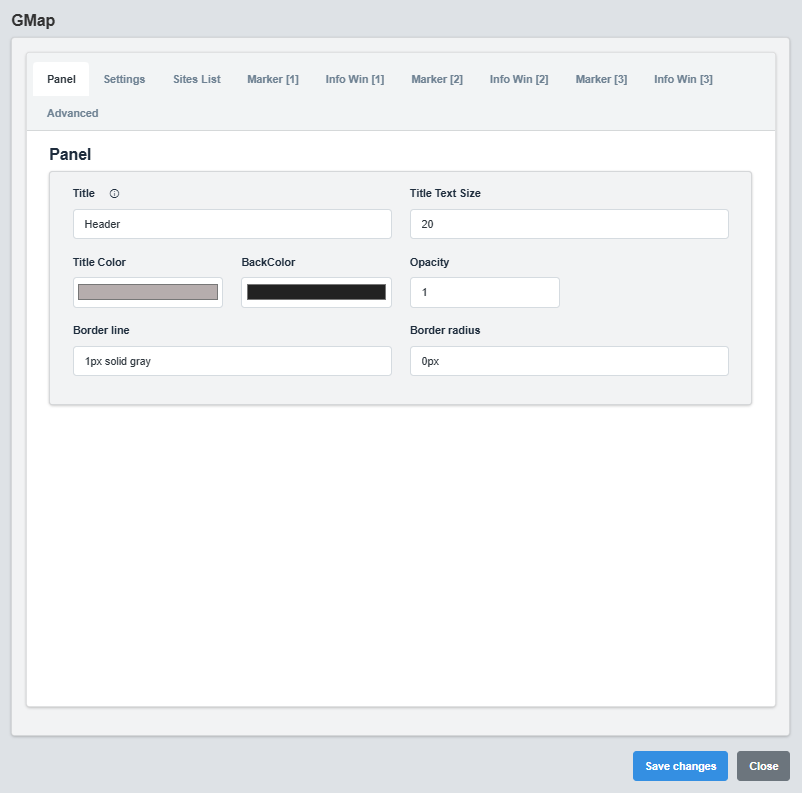
Panel Configuration tab showing basic appearance and layout settings for the Google Maps component.
The Panel tab controls the basic appearance and layout of the Google Maps component.
|
Parameter |
Description |
Format/Options |
Example |
|
Title |
Sets the display title for the map |
Text string |
Header |
|
Text Size |
Font size for the title text |
Numeric value |
20 |
|
Title Color |
Sets the color of the title text |
Hex color code or CSS color name |
#b6adad |
|
Back Color |
Sets the background color for the map container |
Hex color code or CSS color name |
#222222 |
|
Opacity |
Controls the transparency level of the map container |
0.0 (transparent) to 1.0 (opaque) |
1.0 |
|
Border Line |
Defines the border style for the container. Supports both full border and side-specific border styling |
CSS border syntax or side-specific syntax (semicolon-separated) |
1px solid gray or left: 2px solid red; top: 1px solid blue |
|
Border Radius |
Sets the corner rounding for the map container |
CSS border-radius value |
0px |
Map Container: The panel settings control the container that holds the map, not the map itself. The map appearance is controlled in the Settings tab.
2.2 Settings Configuration
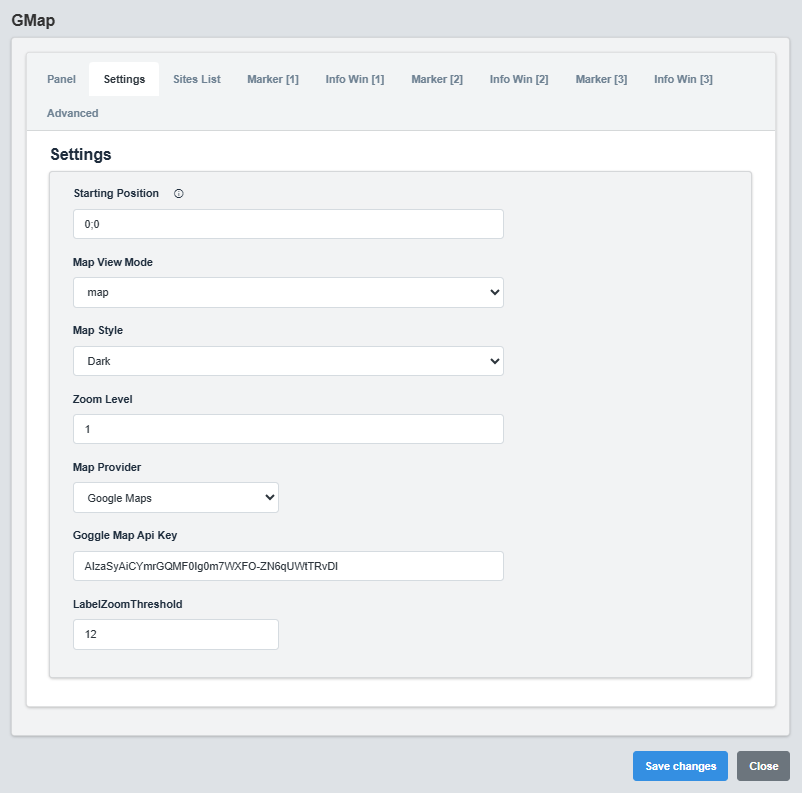
Settings Configuration tab showing map provider, position, and appearance settings.
The Settings tab controls the map provider, initial position, zoom level, and appearance.
|
Parameter |
Description |
Format/Options |
Example |
|
Map Provider |
Mapping service provider |
|
|
|
Starting Position |
Initial map center position |
Latitude;Longitude |
0;0 |
|
Map View Mode |
Type of map view |
map, satellite |
map |
|
Zoom Level |
Initial zoom level |
1-20 |
1 |
|
API Key |
Google Maps API key |
Valid API key string |
AIzaSyAiCYmrGQMF0Ig0m7WXFO-ZN6qUWtTRvDI |
|
Map Appearance |
Visual theme of the map |
light, dark |
dark |
|
Label Zoom Threshold |
Zoom level to show labels |
1-20 |
12 |
API Key: A valid Google Maps API key is required for the map to function. Ensure the API key has the necessary permissions for Maps JavaScript API.
2.3 Sites List Configuration
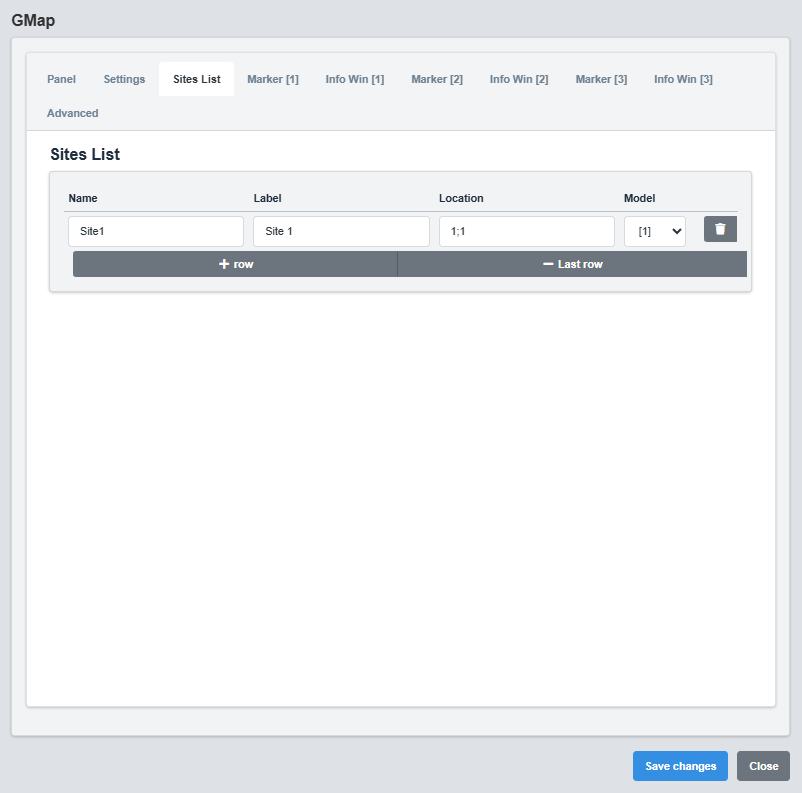
Sites List Configuration tab showing site management and location settings.The Sites List tab manages multiple sites and their locations on the map.
|
Parameter |
Description |
Format/Options |
Example |
|
Name |
Identifier for the site |
Text string |
Factory 1 |
|
Label |
Display name shown on the map |
Text string |
Factory 1 |
|
Location |
Coordinates in format "latitude;longitude" |
String with semicolon separator |
24.66101590727666;46.55017868949314 |
|
Model |
Site model or type identifier |
1,2,3 |
1 |
2. Markers Configuration
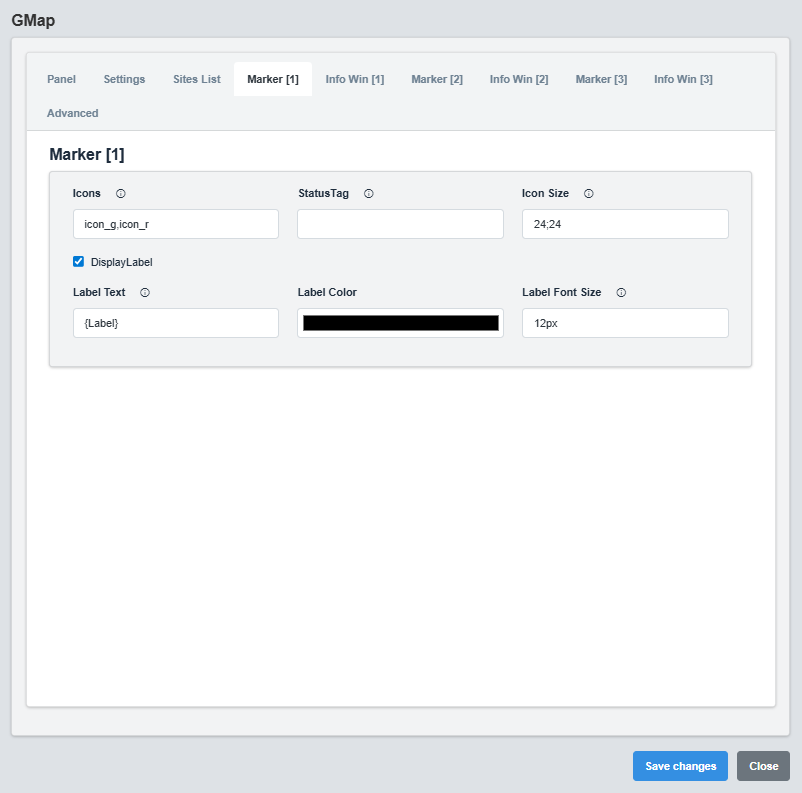
Markers Configuration tab showing marker types, icons, and display settings.
The Markers tab controls the appearance and behavior of map markers.
|
Parameter |
Description |
Format/Options |
Example |
|
Status Tag |
Data source tag for real-time status updates |
Tag name string |
Factory.F1_Status |
|
Icon Files |
Semicolon-separated list of icon files for different states |
Icon filenames from StaticResources folder |
Running.svg;Idle.svg;Fault.svg |
|
Icon Sizes |
Semicolon-separated list of icon sizes (width,height) for each state |
Numeric values with comma separator |
60,70;60,70;60,70 |
|
Show Label |
Display text label on marker |
true/false |
true |
Dynamic Marker Icons: Markers use status tags to dynamically select icons from the StaticResources folder. The system monitors the status tag value and displays the corresponding icon based on the state names configuration. Icons are automatically resized according to the icon sizes specification.
Marker Icon Selection Logic
1. System reads the status tag value (e.g., "Running")
2. Compares tag value with configured state names
3. Selects corresponding icon file from StaticResources folder
4. Applies the specified icon size for that state
Example: - Status Tag: "Factory.F1_Status" - Tag Value: "0";Icon Files: "Running.svg;Idle.svg;Fault.svg" - Result: Displays "Running.svg" from StaticResources folder
StaticResources Folder: All icon files must be placed in the server's StaticResources folder.
2.5 Info Window Configuration
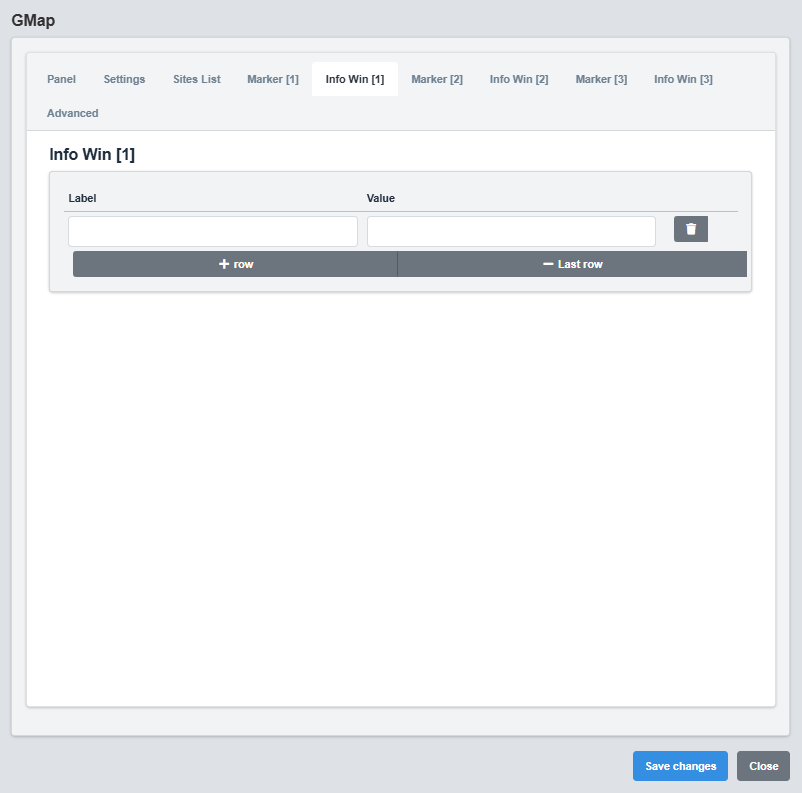
Info Window Configuration tab showing popup window settings and content templates.
The Info Window tab controls the popup windows that appear when markers are clicked.
|
Parameter |
Description |
Format/Options |
Example |
|
Label |
Label text for the info window |
Text string with dynamic placeholders |
Site: @{label} |
|
Value |
Value text for the info window |
Text string with dynamic placeholders |
Status: @{status} |
Simple Info Windows: Info windows display two pieces of information: a Label and a Value. Both can use dynamic placeholders to display real-time data from the site configuration and status information.
Dynamic Placeholders
Available placeholders for Label and Value fields: @{label} - Site display name from site configuration
@{name} - Site unique identifier from site configuration
Examples: Label: "Site: @{label}" → "Site: Factory 1"
Label: "@{name} Information" → "Factory 1 Information"
2.6 Advanced Configuration
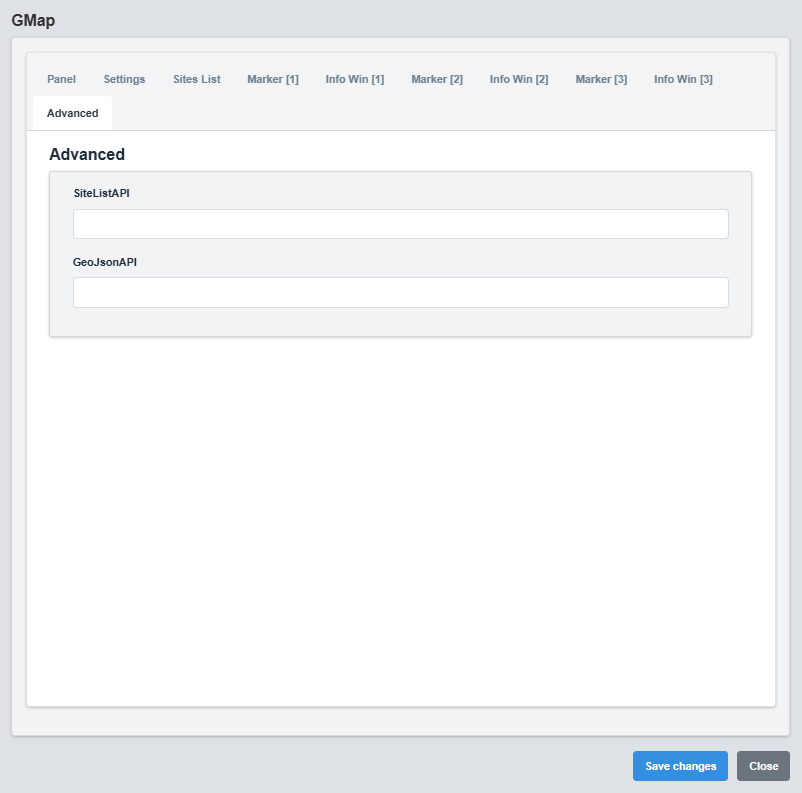
Advanced Configuration tab showing API integration and advanced mapping features.
The Advanced tab provides advanced features like API integration and GeoJSON support.
|
Parameter |
Description |
Format/Options |
Example |
|
Site List API |
API endpoint for site data |
Valid URL |
http://localhost:49110/api/rpc/script?scriptName=SmartMap |
|
GeoJSON API |
API endpoint for GeoJSON data |
Valid URL |
http://localhost:49110/api/rpc/script?scriptName=GetGeoJsonData |
API Integration: Use external APIs to dynamically load site data and GeoJSON information for more complex mapping scenarios.
API Response Structure
The Google Maps component supports two types of API responses for dynamic data loading:
Site List API Response Format
For the Site List API, the component expects a JSON array with site objects containing location, status, and styling information.
[ { "name": "Factory 1", "label": "Factory 1", "location": "24.66101590727666;46.55017868949314", "status": { "tag": "Factory.F1_Status", "icon": "Running.svg;Idle.svg;Fault.svg", "state": "Running;Idle;Fault", "iconSize": "60,70;60,70;60,70" }, "font": "12px", "color": "#d1d1d1", "infoAPI": "http://localhost:49110/api/rpc/script?scriptName=SiteLocation?Params=F1", "filter": { "city": "Riyadh", "type": "Factory" } } ]
Site List API Response Requirements
|
Property |
Description |
Type |
Required |
Example |
|
name |
Unique identifier for the site |
String |
Yes |
"Factory 1" |
|
label |
Display name shown on the map |
String |
Yes |
"Factory 1" |
|
location |
Coordinates in format "latitude;longitude" |
String |
Yes |
"24.66101590727666;46.55017868949314" |
|
status |
Status object with tag and icon information |
Object |
No |
See status object below |
|
font |
Font size for labels |
String |
No |
"12px" |
|
color |
Text color for labels |
String |
No |
"#d1d1d1" |
|
infoAPI |
API endpoint for detailed site information |
String |
No |
"http://localhost:49110/api/rpc/script?scriptName=SiteLocation?parms=F1" |
|
filter |
Filtering metadata for site categorization |
Object |
No |
{"city": "Riyadh", "type": "Factory"} |
Status Object Structure
|
Property |
Description |
Type |
Required |
Example |
|
tag |
Data source tag for real-time status updates |
String |
Yes |
"Factory.F1_Status" |
|
icon |
Semicolon-separated list of icon files for different states |
String |
No |
"Running.svg;Idle.svg;Fault.svg" |
|
state |
Semicolon-separated list of state names corresponding to icons |
String |
No |
"Running;Idle;Fault" |
|
iconSize |
Semicolon-separated list of icon sizes (width,height) for each state |
String |
No |
"60,70;60,70;60,70" |
GeoJSON API Response Format
For the GeoJSON API, the component expects a standard GeoJSON FeatureCollection with features containing properties and geometry.
{ "type": "FeatureCollection", "features": [ { "type": "Feature", "properties": { "name": "Dhahran Oil Complex", "type": "processing_facility", "status": "Normal", "capacity": "2.5M bpd", "operator": "Saudi Aramco", "established": "1938", "style": { "icon": { "path": "CIRCLE", "fillColor": "#22c55e", "fillOpacity": 0.8, "strokeColor": "#ffffff", "strokeWeight": 2, "scale": 8 } } }, "geometry": { "type": "Point", "coordinates": [50.0647, 26.3351] } } ] }
GeoJSON Feature Structure
|
Property |
Description |
Type |
Required |
Example |
|
type |
GeoJSON feature type (must be "Feature") |
String |
Yes |
"Feature" |
|
properties |
Feature properties and metadata |
Object |
Yes |
See properties object below |
|
geometry |
Geometric data (Point, LineString, Polygon) |
Object |
Yes |
See geometry object below |
Properties Object Structure
|
Property |
Description |
Type |
Required |
Example |
|
name |
Display name for the feature |
String |
Yes |
"Dhahran Oil Complex" |
|
type |
Type or category of the feature |
String |
No |
"processing_facility" |
|
status |
Current status of the feature |
String |
No |
"Normal" |
|
style |
Styling information for the feature |
Object |
No |
See style object below |
Style Object Structure
|
Property |
Description |
Type |
Required |
Example |
|
icon |
Icon styling for point features |
Object |
No |
See icon object below |
|
strokeColor |
Color for line features |
String |
No |
"#22c55e" |
|
strokeWeight |
Line width for line features |
Number |
No |
4 |
|
strokeOpacity |
Line opacity for line features |
Number |
No |
0.8 |
Icon Object Structure (for Point Features)
|
Property |
Description |
Type |
Required |
Example |
|
path |
Icon shape (CIRCLE, SQUARE, etc.) |
String |
No |
"CIRCLE" |
|
fillColor |
Fill color of the icon |
String |
No |
"#22c55e" |
|
fillOpacity |
Fill opacity of the icon |
Number |
No |
0.8 |
|
strokeColor |
Border color of the icon |
String |
No |
"#ffffff" |
|
strokeWeight |
Border width of the icon |
Number |
No |
2 |
|
scale |
Size scale of the icon |
Number |
No |
8 |
Geometry Object Structure
|
Property |
Description |
Type |
Required |
Example |
|
type |
Geometry type (Point, LineString, Polygon) |
String |
Yes |
"Point" |
|
coordinates |
Coordinate array [longitude, latitude] for Point |
Array |
Yes |
[50.0647, 26.3351] |
API Response Notes:
Site List API: Use for simple marker-based maps with status indicators
GeoJSON API: Use for complex maps with multiple geometry types and rich styling
Coordinates: Site List uses "lat;lng" format, GeoJSON uses [lng, lat] array format
Status Updates: Site List API supports real-time status updates via tag names
Styling: Both APIs support custom styling, but GeoJSON offers more flexibility
3. Troubleshooting
Common Issues and Solutions
|
Issue |
Possible Causes |
Solutions |
|
Map not loading |
Invalid API key, network issues |
Verify API key and check network connection |
|
Markers not appearing |
Invalid coordinates, marker configuration |
Check latitude/longitude values and marker settings |
|
Info windows not showing |
Content template errors, click handlers |
Verify content template and click event configuration |
|
API errors |
Invalid API endpoints, authentication, incorrect response format |
Check API URLs, authentication credentials, and ensure response matches required format |
|
Site List API not loading |
Invalid response format, missing required properties |
Ensure response is JSON array with name, label, and location properties |
|
GeoJSON API not loading |
Invalid GeoJSON format, missing FeatureCollection structure |
Ensure response follows GeoJSON FeatureCollection standard with proper geometry |
|
Markers not displaying correctly |
Invalid coordinate format, missing status information |
Check coordinate format (lat;lng for Site List, [lng,lat] for GeoJSON) |