
Web Browser
Web Browser Control
In order to add a Web Browser control to the graphics page, follow the following steps:
1. Select "Web Browser" component from the tool bar.
2. To configure the "Web Browser", Double-click to open its configuration window.
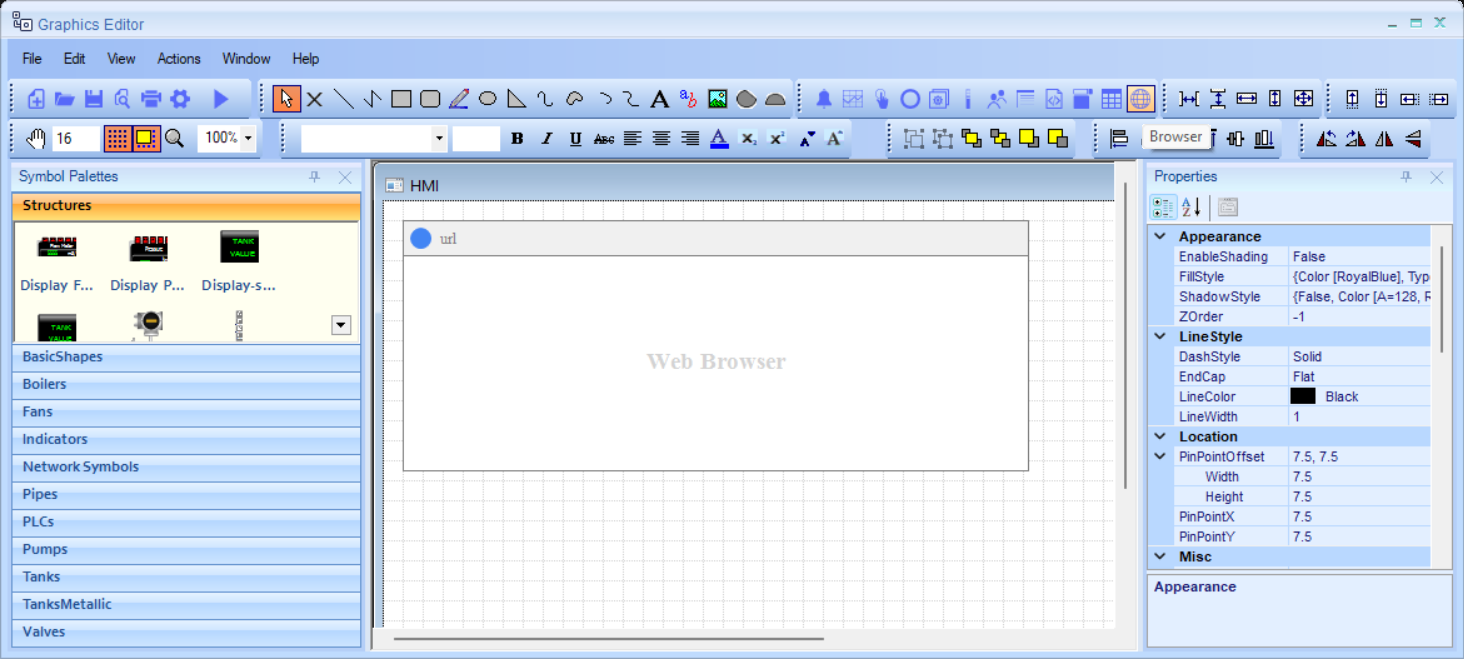
Web Browser Configuration
General Tab
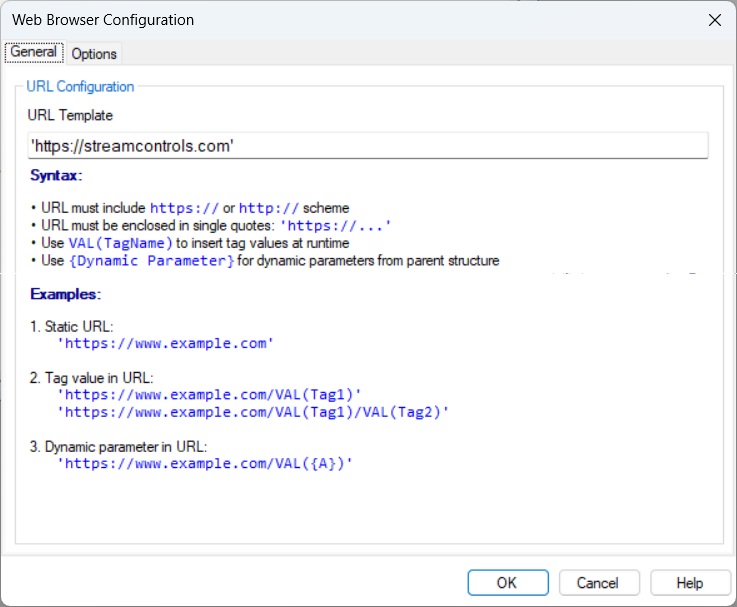
- URL Template: Enter the web address (URL) to display in the browser control.
The URL must:
- Include the scheme (https:// or http://)
- Be enclosed in single quotes
The URL template supports dynamic content through:
- Tag Values: Use VAL(TagName) to insert real-time tag values into the URL. The browser automatically updates when tag values change.
- Dynamic Parameters: Use {A}, {B}, etc. to insert values from the parent structure group. These are replaced once when the page loads.
Options Tab
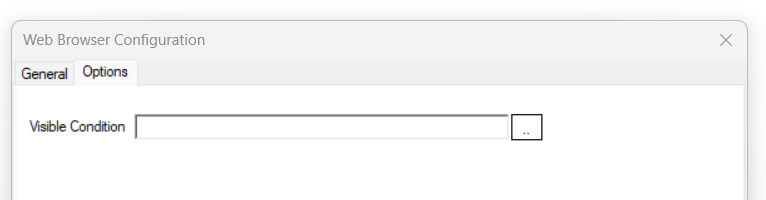
Visibility
- Visible Condition: Enter a tag or an expression to control web browser visibility. When the expression evaluates to 1, the web browser is visible; when 0, it is hidden. Leave empty for always visible.